1. Why Convert iWork Documents to PDF?
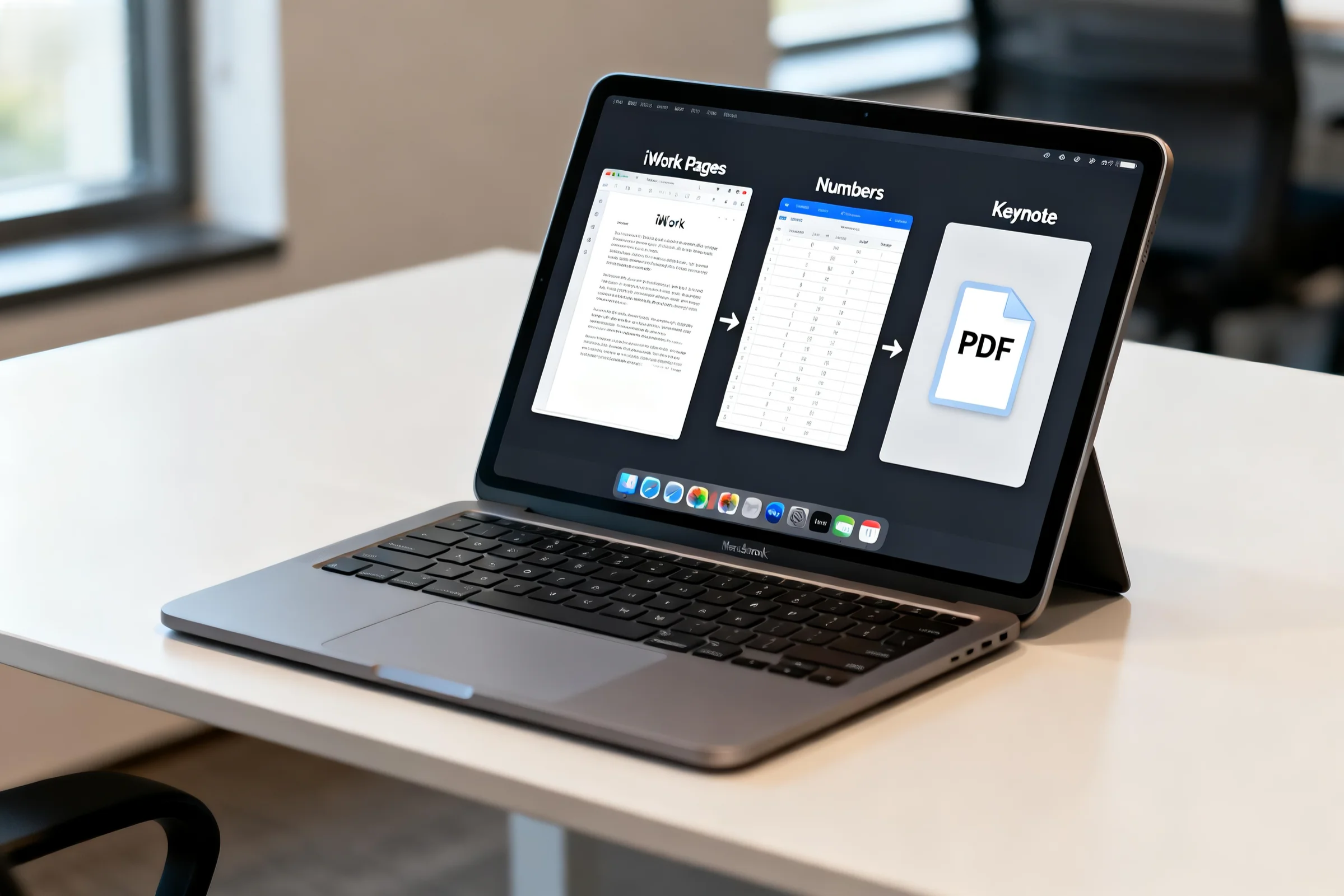
Although Apple’s iWork suite (Pages, Numbers, and Keynote) offers powerful tools, its native formats are not always universally accessible. Converting iWork documents to PDF ensures seamless sharing, professional use, and long-term access.
Cross-Platform Compatibility
PDFs can be opened on virtually any device, whether Apple, Windows, Linux, or Android, making them ideal for collaboration.
Professional and Business Standards
PDF is the preferred standard in business and academic environments, ensuring that your documents are taken seriously.
Consistent Formatting and Printability
Unlike iWork files, which may shift formatting on non-Apple platforms, PDFs maintain fonts, layouts, and images exactly as intended.
Long-Term Accessibility and Archiving
PDFs are archival-friendly, guaranteeing that your files remain accessible and unchanged for years.
2. Benefits of Using an iWork to PDF Converter
Using a dedicated converter gives you reliability, flexibility, and security beyond Apple’s built-in export options.
Preserves Layout, Fonts, and Graphics
The converter maintains the original design of your Pages, Numbers, or Keynote files without loss of quality.
Supports Pages, Numbers, and Keynote Files
Convert any iWork format into a PDF, whether it’s text-heavy documents, spreadsheets, or multimedia presentations.
Works Across Apple and Non-Apple Devices
Ensure that colleagues or clients without Apple devices can easily view your files.
Secure, Fast, and Reliable Conversion
Files are processed quickly with encryption, protecting sensitive business or academic information.
3. How to Convert iWork Documents to PDF Online
Converting iWork to PDF online is simple, fast, and requires no special technical skills.
Step 1: Upload Your iWork File (Pages, Numbers, or Keynote)
Drag and drop your file or select it from your device or iCloud storage.
Step 2: Adjust Formatting and Settings
Choose page orientation, margins, or resolution depending on your needs.
Step 3: Convert Instantly with One Click
Click the Convert button, and within seconds your PDF will be ready.
Step 4: Download, Save, and Share Your PDF
Save your file locally or share it through email, cloud platforms, or messaging apps.
4. Key Features of Our iWork to PDF Tool
Our converter is built to serve professionals, students, and casual users alike.
High-Quality Output for Print and Digital Use
Whether for presentations, official submissions, or archival purposes, PDFs are sharp and precise.
Batch Conversion for Multiple Files
Save time by converting several Pages, Numbers, or Keynote files at once.
Mobile-Friendly and Browser-Based
Convert iWork documents directly from your smartphone or tablet—no software installation required.
Cloud Storage Integration (iCloud, Google Drive, Dropbox, OneDrive)
Import and export documents seamlessly between devices and cloud platforms.
Data Privacy and Secure File Handling
Your files are encrypted during transfer and automatically deleted after processing.
5. iWork to PDF Conversion for Different User Groups
Different professionals and users benefit from iWork to PDF conversion in unique ways.
For Students and Educators
Distribute assignments, research papers, or teaching materials in a universally accessible format.
For Freelancers and Creative Professionals
Convert portfolios, client proposals, and creative work into professional PDFs for reliable sharing.
For Business Professionals and Office Workers
Ensure contracts, reports, and presentations remain consistent across mixed device environments.
For Non-Apple Device Users
Access and view Apple-created content without needing Pages, Numbers, or Keynote installed.
6. Ensuring Security and Privacy in iWork to PDF Conversion
Confidentiality is a priority when handling sensitive documents.
SSL Encryption for File Transfers
All files are protected with secure SSL connections during upload and download.
Automatic File Deletion After Conversion
Your uploaded iWork files are removed from servers shortly after conversion.
Confidential File Processing
Documents are handled automatically, with no human access at any point.
7. Why Choose Our iWork to PDF Converter?
We deliver a reliable, user-friendly solution backed by expertise and trust.
Expertise in Apple Document Formats
Our tool is designed specifically to handle iWork formats with precision and accuracy.
Trusted by Global Professionals and Institutions
Used worldwide by students, businesses, and educators, our solution ensures professional results.
Simple, User-Friendly, and Reliable
No installations, no complications—just fast and accurate PDF conversion.
Dedicated Support for All Users
Our responsive team is available to answer questions and resolve issues promptly.
8. Frequently Asked Questions (FAQs)
Can I convert Pages, Numbers, and Keynote files to PDF?
Yes. Our converter supports all iWork formats, including text, spreadsheets, and presentations.
Do I need an Apple device to use the converter?
No. You can upload and convert iWork files from any platform, including Windows and Android.
Is the conversion process secure?
Yes. All files are encrypted during transfer and deleted after conversion for maximum privacy.
Can I use the converter on my smartphone?
Yes. The tool is mobile-friendly and works directly in your browser without extra software.
Does it support batch conversion?
Yes. You can convert multiple iWork documents into PDFs at the same time.
9. Start Converting iWork to PDF Online Today
Stop worrying about compatibility issues. With our fast, secure, and professional iWork to PDF converter, you can ensure that your files look perfect everywhere.
👉 Upload your Pages, Numbers, or Keynote file now and get your PDF in seconds.